 |
MIPI - Physical Interface for MIDI Files
|
|
MIPI - Physical Interface for MIDI Files
|
MIPI
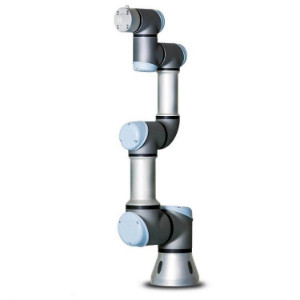
This package implements 3 standalone nodes that work together to control a UR3e to play the piano. Below is an overview of the nodes and their functionality, as well as some details on the code structure and behaviour.
RoboticsStudio2-JAMC Repository
UI** - Usage Guide
The PianoUI serves as the primary interaction layer for the JAMC system. It is implemented as a dual-inheritance Hybrid Node, combining the event-driven nature of Qt 5/6 * with the distributed messaging of ROS 2 Humble.
The interface is designed with a high-contrast "Dark Mode" aesthetic (Visual Studio Code style) to ensure readability in lab environments. The layout is divided into four functional zones:
Hybrid Execution Model** The class inherits from QWidget and rclcpp::Node. To prevent the ROS 2 executor from blocking the Qt Main Thread (which would freeze the UI), the node is designed to handle asynchronous callbacks.
Thread-Safe Image Processing** One of the most critical features of the UI is the image_callback. Incoming camera frames from the /camera/camera/color/image_raw topic are processed in the ROS background thread and safely handed over to the Qt thread:
sensor_msgs data is mapped to QImage::Format_RGB888.Qt::SmoothTransformation to maintain visual quality.Invocation: The UI update is triggered via QMetaObject::invokeMethod using a Qt::QueuedConnection, ensuring the GUI remains responsive and thread-safe.
Dynamic Control Logic** The UI maintains internal state machines for:
is_playing to toggle between ▶ (Play) and ▐▐ (Pause) icons.force_pause_and_reset() method ensures that the robot comes to a safe halt before new MIDI data is loaded into the controller.| UI Element | ROS 2 Object | Interface Type |
|---|---|---|
| Camera View | _camera_sub | sensor_msgs::msg::Image |
| Play/Pause Button | playback_client | jamc::srv::Func |
| Foreard/Rewind Button | playback client | jamc::SRC::Func |
| Debug Button | playback client | jamc::SRV::Func |
| Speed Slider | time_scale_client | jamc::srv::TimeScale |
| File/Track Selector | channel_client | jamc::srv::Load |
MIDI Processing** - Usage Guide
MidiProcessor is a standalone C++ utility class designed for reading, processing, filtering, and serializing MIDI data into a custom JSON-based .mipi format. It uses the midifile library for MIDI parsing and nlohmann::json for data storage and retrieval.
The class extracts musical information from MIDI files on a per-channel basis, including instruments, notes, note timings, note durations, and song length. It also converts MIDI note data into a simplified keyboard mapping system suitable for playback, visualization, or hardware interaction.
The processMidiFile() function performs the complete processing workflow in the following order:
Apply note filtering:
5.1. Chord filtering
5.2. Trill filtering
5.3. Overlapping note filtering
5.4. Trim overlapping note durations
The class includes several preprocessing filters to simplify dense MIDI data:
Chord Filter:
Trill Filter
Overlapping Note Filter
Duration Trimming
After filtering, notes are mapped onto a 37-key keyboard range centered around the average pitch of each channel. Notes outside the valid range are octave-shifted until they fit within bounds.
Controller** - Usage Guide
The Controller class in the Control namespace is responsible for all direct ROS2 interaction with the robots UR_DRIVER and MoveIt Servo libraries. It exposes no public members to be interacted with and as such must be controlled via its various ROS2 Interfaces (See Usage Guide above).
Before Starting the node, it assumes that you have followed the Intallation, Physical Robot Setup and Software Setup sections defined in the Usage Guide. Without all that infrastructure running, the Node will be unable to function. When spinning the node into the ROS2 environment, the following will happen:
Perception** - Usage Guide
The vision code utilises the Intel RealSense camera to detect the two AprilTags placed on either side of the piano, along with each black and white key on the keyboard. Every key is individually segmented, allowing its midpoint to be marked and displayed. At present, the keys are mapped from the right to the left side of the keyboard. The next step is to identify the coloured dots on the keys, which will allow each key to be recognised more accurately and its position mapped using these coloured stickers.
Acknowledgements of External Library Usage:
To build the package please refer to *BUILD**
- This launch file will start all 3 nodes together, and is the recommended way to start the system. It will also start all dependencies, like the UR_driver, MoveIt Servo, and Realsense Camera program.
- Starts the Controller node on its own, without any dependencies.
- Starts the UI node on its own, without any dependencies.
Refer to the source code for detailed topic and service names, and to adjust parameters as needed for your environment.
 1.9.8
1.9.8